Instagram · Download your photos
How to download all your Instagram photos
Prefer a click-by-click walkthrough with screenshots? See the full guide →




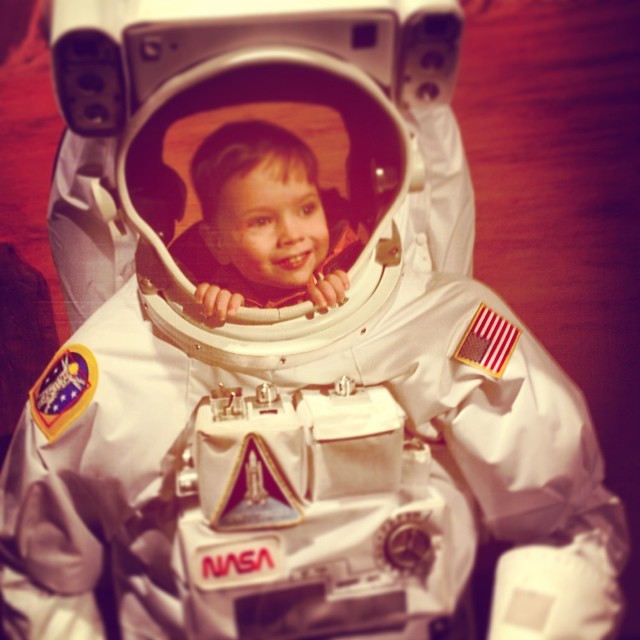


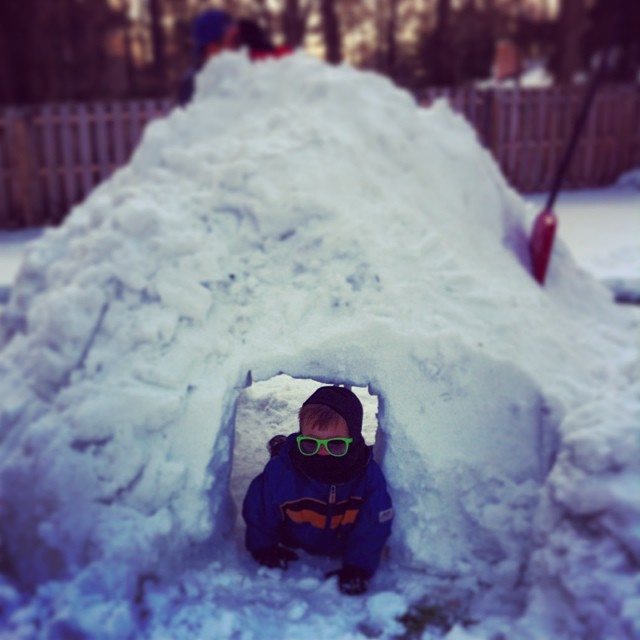
From a messy ZIP to this — every photo and video organized by year and by the people in them.
Download everything with Instagram's tool
Instagram (like Facebook — both are owned by Meta) lets you request a complete copy of everything you've posted. It's the official, free way to get every photo and video at once — you just have to wait while Meta packages it, and what lands is a ZIP file full of folders.
- Open your profile and go to Settings. In the Instagram app, tap your profile picture (bottom right), then tap the menu in the top-right corner and choose Settings and activity.
- Open Accounts Center. At the top of Settings, tap Accounts Center — the Meta hub that manages your Instagram and Facebook accounts together.
- Go to Your information and permissions. In Accounts Center, tap Your information and permissions, then Download your information.
- Choose your account and what to include. Tap Download or transfer information, pick your Instagram account, then choose Some of your information and select Photos and videos — or choose All available information if you want everything.
- Set the format, date range, and quality. Choose HTML for a version that's easy to browse, or JSON if you plan to import it elsewhere. Set the date range to All time and set Media quality to High — Instagram offers a lower default that makes your photos look worse than they are.
- Submit the request. Tap to create the file. Instagram emails you a download link when it's ready — usually a few hours, up to a few days for large accounts.
- Download and unzip. Open the email, follow the link (it expires after a few days), and unzip the ZIP on your computer. Large archives arrive as several ZIP files — grab all of them.
On desktop the steps are identical at instagram.com or in Accounts Center on the web: Accounts Center → Your information and permissions → Download your information. For the detailed version with screenshots, see how to request your archive step by step.
Just need a few? Open a post, take a screenshot for casual use — Instagram has no reliable one-tap "save original" for your own posts, so the full export is the dependable way to get full-resolution files past a handful.
Turn that ZIP into a gallery you'll actually enjoy
The export gets your photos and videos out — but it leaves them in a mess. They land in nested folders with cryptic names, the original dates are often stripped, and videos sit apart from photos. After all that waiting, you're left with a ZIP you can't really browse.
That's what everkept fixes. Upload the ZIP and you get one private gallery — every photo and video together, organized by year and grouped by the people in them, with the dates restored. Only you can access it, your uploaded files are deleted from our servers after 30 days unless you keep your gallery, and it's never sold, shared, or used to train anything. Free to see what we found; one-time price to keep it, no subscription.
Common questions
How long does Instagram take to prepare your photo download?
It depends on how much you've posted. Smaller accounts often get their ZIP file within a few hours; accounts with thousands of posts and years of history can take up to a few days. Instagram emails you when the file is ready, and the download link expires after a few days — so download it promptly.
Can I download my Instagram photos on my phone?
Yes. The "Download your information" tool lives inside the Instagram app under Accounts Center, so you can request your full archive directly from your phone and download the ZIP when the email arrives. Saving a single file to your camera roll usually still means downloading the full archive or taking a screenshot.
Will downloading my Instagram photos delete them from Instagram?
No. Downloading creates a copy of your photos and videos. Your original posts stay on Instagram exactly as they were — nothing is deleted or changed on your profile.
Should I choose HTML or JSON when downloading?
Choose HTML if you just want a version that's easy to browse in a web browser. Choose JSON if you plan to import your data into another tool. Either way, photos come as JPEG files and videos as MP4 files, and everkept works with the archive in either format.
Why are my downloaded Instagram photos lower quality than I remember?
Two reasons. First, make sure you select "High" under media quality when requesting your download — Instagram offers a lower default. Second, Instagram compresses photos and videos when you upload them, so even the stored version may be slightly lower quality than the original file on your camera.
Is there an easier way to see my Instagram photos in a nice gallery?
Yes. Once you have your ZIP, everkept turns it into one private gallery — every photo and video together, organized by year and by the people in them, with dates restored. Free to see what we found; one-time price to keep it, no subscription.
Your memories deserve better than a ZIP file
Download your Instagram export, then see it turned into one private gallery you control — organized by year and by person, free to browse everything we find for 7 days.
Browse your whole gallery free →No password needed · Your files are private and deleted after 30 days unless you keep your gallery · One-time price, no subscription